How to Access and Play the Battleplan Demo: A Strategic Guide
Discover how to access the Battleplan demo on Steam, understand its unique RTS mechanics, and prepare for the full World War II tactical experience.
Published: Battleplan Wiki Editorial Team
Table of Contents
Accessing Battleplan and Its Demo
To play Battleplan, the primary destination is its official Steam store page. As of October 2026, the full game is available for purchase. While demo versions are often released to coincide with events like Steam Next Fest, availability can fluctuate. If a demo is currently active, a "Download" button will typically appear in a dedicated section on the right side of the store page.
It is important to note that the demo is a preview of the mechanics and does not necessarily contain the full scope of content found in the final release. Always verify the current status on the Steam page, as developers may rotate demo availability based on promotional cycles.
Mastering the Unique RTS Mechanics
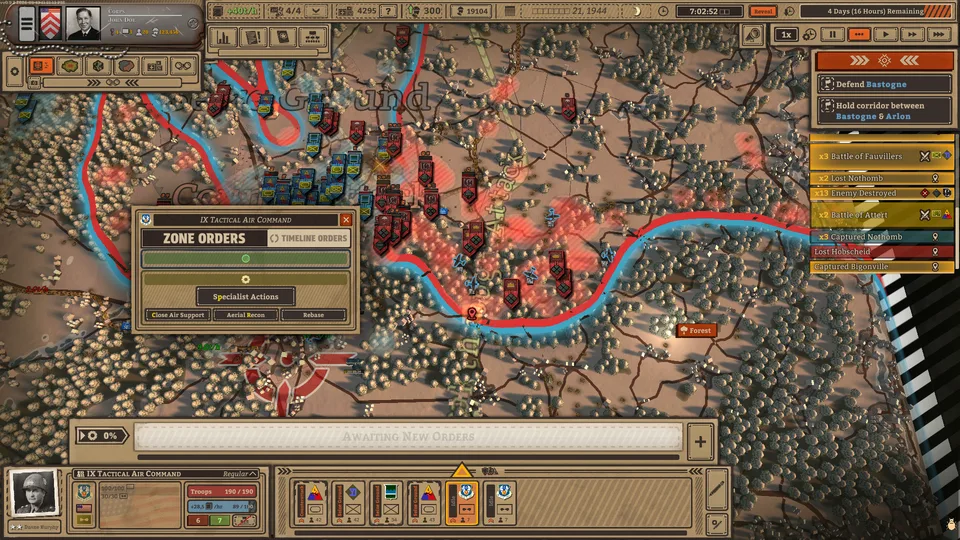
Unlike traditional real-time strategy games where you micromanage individual units, Battleplan focuses on high-level command. The core innovation lies in the planning phase, where you draw orders directly onto the map.
Tip
When drawing orders, remember that the game interprets your pen movement as a closed area or specific path. You must click the green check icon to execute your plan; otherwise, your units will remain idle after the planning phase concludes.
The game simulates a realistic chain of command. You are responsible for customizing your army’s structure, connecting units to their respective commanders, and managing the flow of supplies. As noted by community experiences, the "Army Constructor" menu is where you match officer specialties with unit compositions. Pay close attention to unit debuffs and personality quirks, as these significantly impact combat effectiveness.
Strategic Tips for Breakthroughs and Logistics
Success in Battleplan hinges on your ability to manage logistics rather than just brute force. An army that is cut off from its supply depots will slowly lose morale and combat effectiveness.
Analyze the Terrain: Use real-world elevation data to place artillery on high ground.
Prepare the Front: Use engineers to clear minefields before ordering a breakthrough.
Execute the Plan: Draw your offensive orders and ensure they are confirmed.
Monitor Supplies: Keep an eye on the top-left UI; if supplies run low, pull back or capture enemy depots.
Emergency Adjustments: If a plan fails, use the "emergency orders" button—but use it sparingly, as it is limited to once per day.
Community reports emphasize that encircling the enemy is the most effective way to force a surrender. Battles of attrition against dug-in enemies often stall, so seek opportunities to flank and capture supply points to cripple the enemy's ability to fight back.
Understanding the Chain of Command
In Battleplan, you don't just command soldiers; you manage a hierarchy. Your officers provide passive and active skills that can turn the tide of battle.
Officer Management
Officers are the backbone of your army. They gain veterancy and unique traits over time. Keep them alive, and they will become more effective at boosting unit performance.
Unit Connectivity
You can drag lines to connect units to specific commanders. If a unit is not performing as expected, check if it is correctly linked in the command structure.
One common mistake for new players is overextending. When you move an army corps deep behind enemy lines to capture a supply depot, you risk cutting yourself off from your own supply chain. Always maintain a cohesive frontline and ensure your breakthrough units have a secure path for resupply.
FAQ: Frequently Asked Questions
Is the Battleplan demo content the same as the full game?
No. The demo is designed to showcase specific gameplay mechanics and usually offers a limited scenario or mission set. It is not equivalent to the full version of the game.
Can I play Battleplan on Steam Deck?
The Steam Deck compatibility for Battleplan is currently listed as "Unknown." Users should check the store page for updates regarding handheld support.
Why are my units not following my orders?
Ensure you have clicked the green check icon after drawing your orders. If you simply draw the plan and click "Finish Planning," the orders will not be registered. Also, remember that some orders are time-sensitive and will expire after a set number of hours.